Actuator Assembly Guide
We build the robot’s 3D-printed actuators by following the official Berkeley Humanoid Lite documentation. This page shows which upstream pages to use, and where our course version differs.
What’s different from Berkeley Humanoid Lite
Our actuators use a different motor driver board: the XDrive MINI from Makerbase, which is based on ODrive v3.6 and has an on-board AS5047P encoder. See the Motor Driver page for details.
Because of the new driver board, a few parts are changed or added:
- Magnet extender (new): a small cylinder, 6 mm in diameter, placed between the motor shaft and the rotary magnet. It brings the magnet closer to the encoder on the back of the driver board, reducing the air gap between them. Its height depends on the actuator:
- 6512 actuator: 6 mm
- 5010 actuator: 3 mm
- Driver board spacer (new): a spacer between the steel heat plate and the driver board.
- Motor shell v2 (modified): our modified version of the motor shell. Use it in place of the upstream motor shell.
Course part files
| Part | Actuator | File |
|---|---|---|
| Magnet extender (6 mm) | 6512 | magnet-extend-6mm.stl |
| Magnet extender (3 mm) | 5010 | magnet-extend-3mm.stl |
| Motor shell v2 | 6512 | motor-shell-v2-6512.step |
| Motor shell v2 | 5010 | motor-shell-v2-5010.step |
| Driver board spacer | 6512, 5010 | driver-board-spacer.stl |
1. Get the 3D print files
This step covers the actuators only. Files and instructions for the rest of the robot body are in the Full Robot Assembly guide.
On the upstream Releases page, under 3D Printing Project Files, get the files for the 6512 Actuator and the 5010 Actuator. Then replace the upstream motor shell with our motor shell v2, and add the magnet extender and driver board spacer from the table above.
Berkeley Humanoid Lite: Releases
2. Print the parts
Follow the upstream 3D Printing Instructions for print settings. The actuator parts use specific print profiles, so check which profile each part needs.
Berkeley Humanoid Lite: 3D Printing Instructions
3. Build the actuator
Follow the upstream Building the Actuator guide to assemble the actuator, with the changes below.
Berkeley Humanoid Lite: Building the Actuator
Skip “Preparing the magnetic encoder” in the upstream guide. That step is for the original AS5600 encoder board. The XDrive MINI has its own on-board AS5047P encoder.
Mounting the magnet
Place the magnet extender between the motor shaft and the rotary magnet. You can attach the extender to the shaft, and the magnet to the extender, with double-sided tape or a hot glue gun. The diagram below shows the stacking order, from the driver board down to the motor, for each actuator.
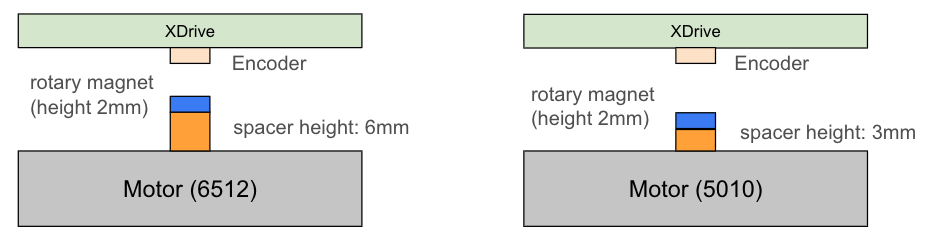
Side view, not to scale. Left: 6512 actuator with the 6 mm magnet extender. Right: 5010 actuator with the 3 mm magnet extender. The magnet in this diagram is 2 mm tall.
The rotary magnet that comes with the XDrive MINI is 6 mm in diameter and 2.5 mm tall, slightly taller than the 2 mm magnet in the diagram. Magnet dimensions can vary, so measure your magnet before assembling.
Make sure the air gap between the magnet and the encoder stays within 0.5–3 mm, as we recommend.
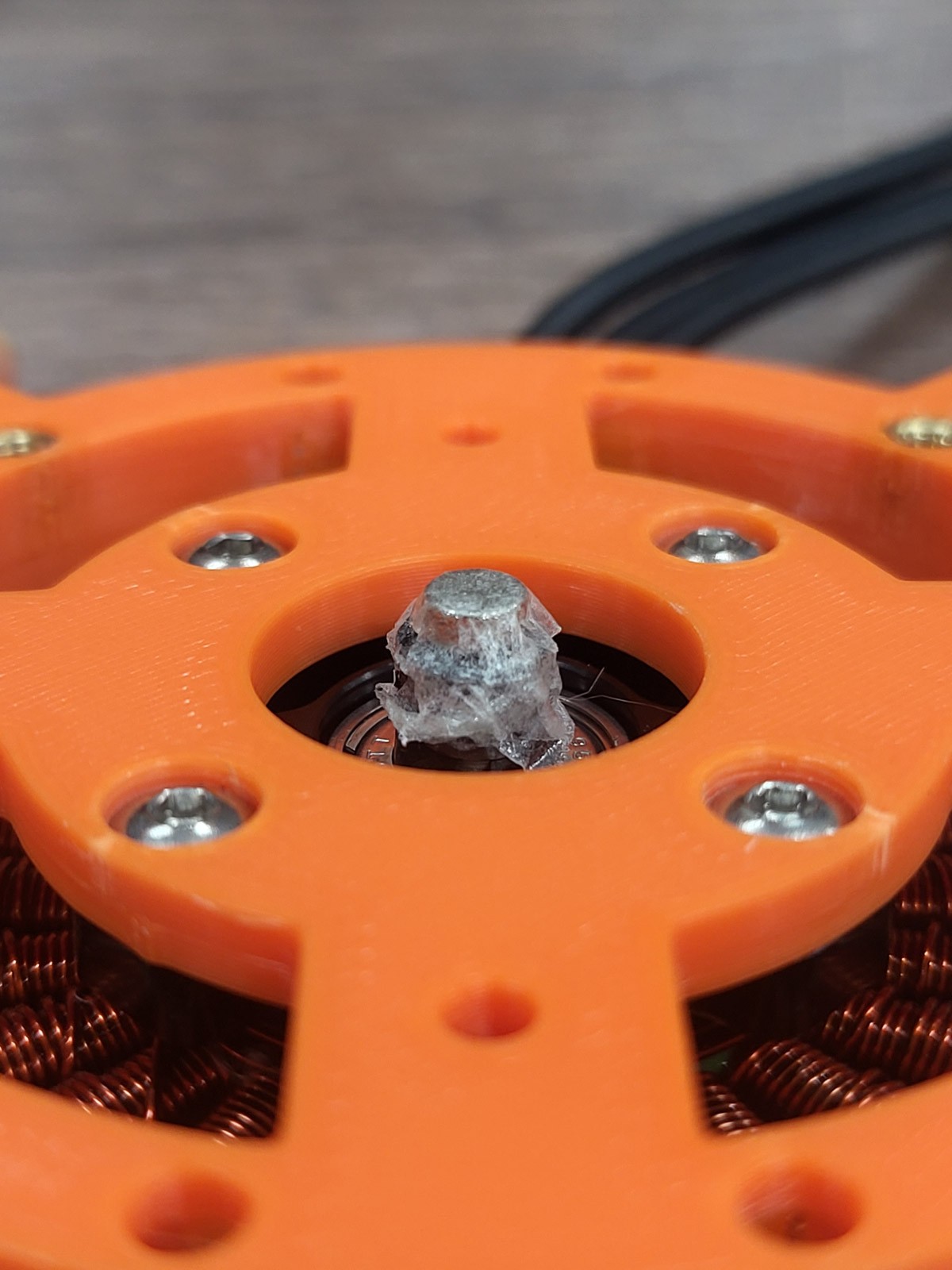
The magnet extender and rotary magnet attached to the motor shaft.
Assembled actuator
The assembled actuator, seen from the driver board side:
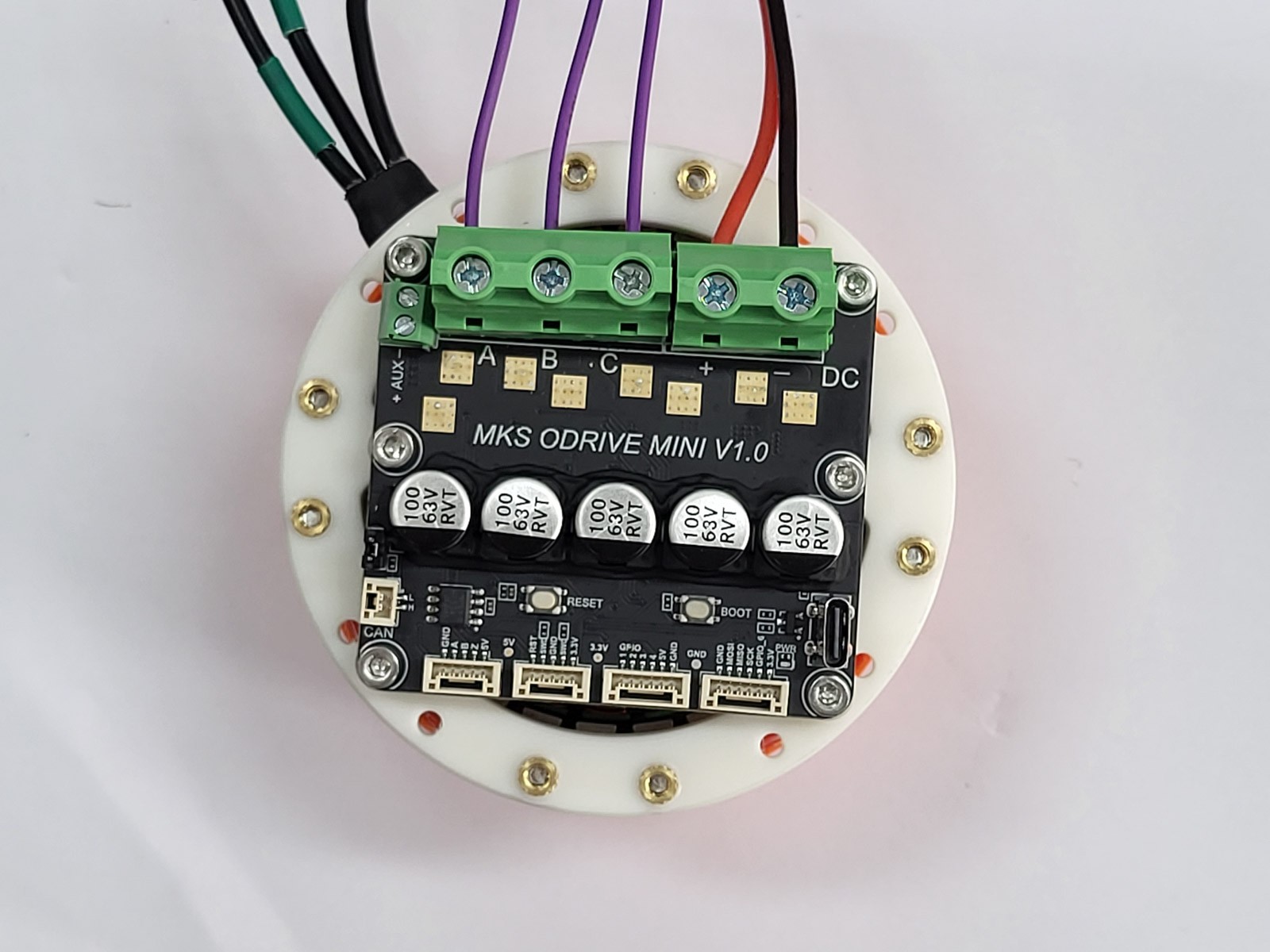
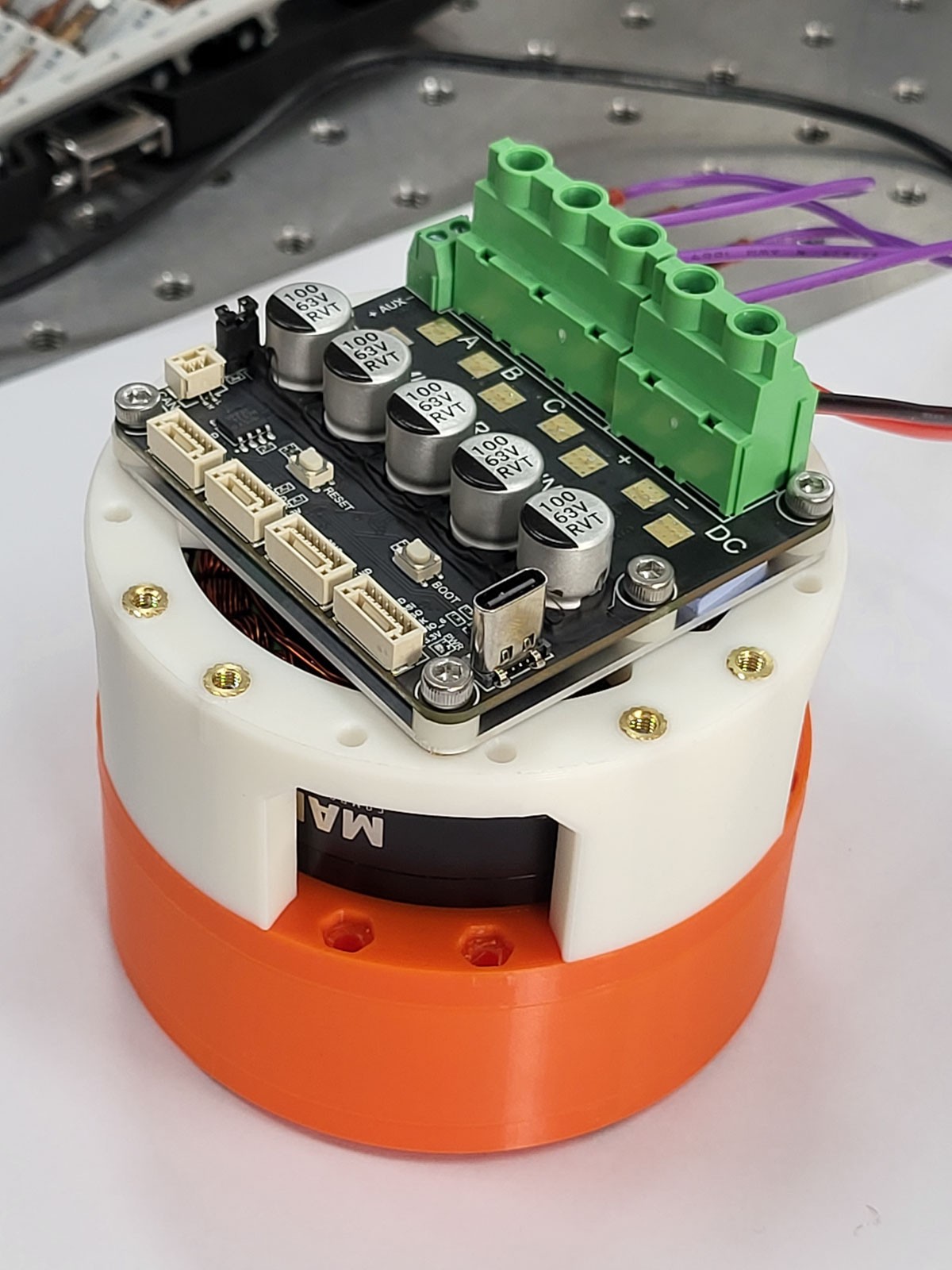
Soldering the wires
The XDrive MINI comes with screw terminal blocks, as in the photos above. Terminal blocks are fine for testing a single actuator, but for the full robot you need to remove them and solder the wires directly to the board.
Tools
- Long-nose pliers
- Magnetic PCB holder: a steel base plate with neodymium magnetic posts that hold the board in place while you solder
- Soldering iron and solder
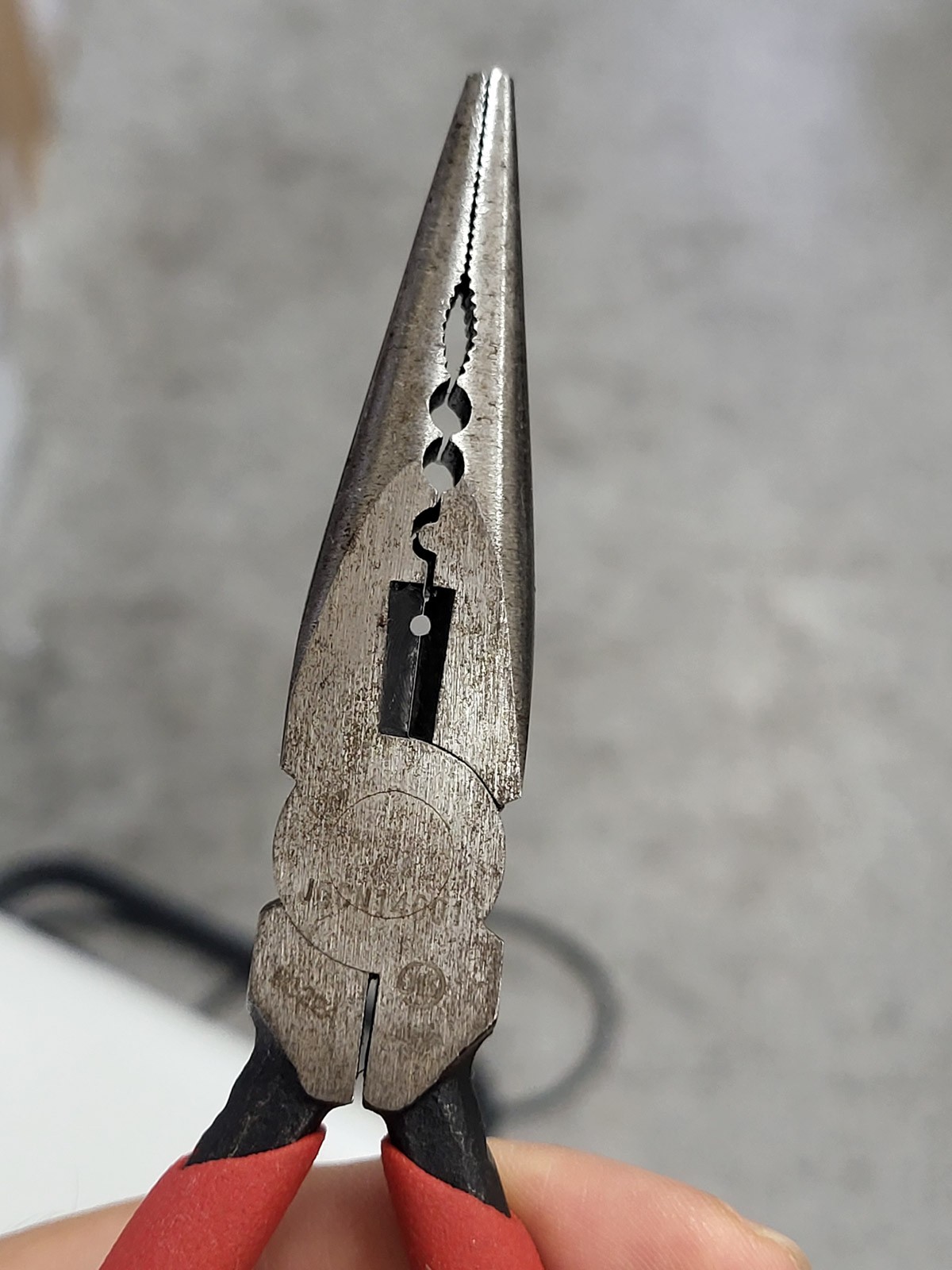
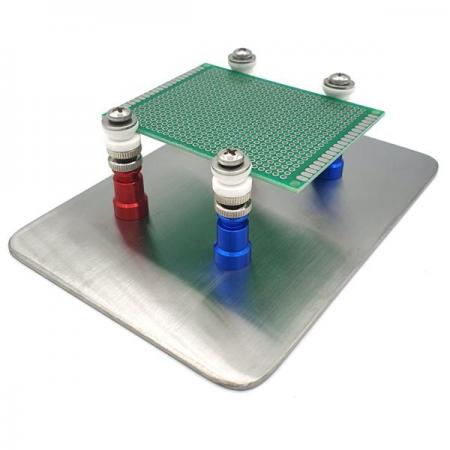
Left: long-nose pliers. Right: magnetic PCB holder.
1. Remove the terminal blocks
Fix the driver board in the magnetic PCB holder. Hold the terminal block with the long-nose pliers, and heat its solder joints with the soldering iron until the block comes off the board.
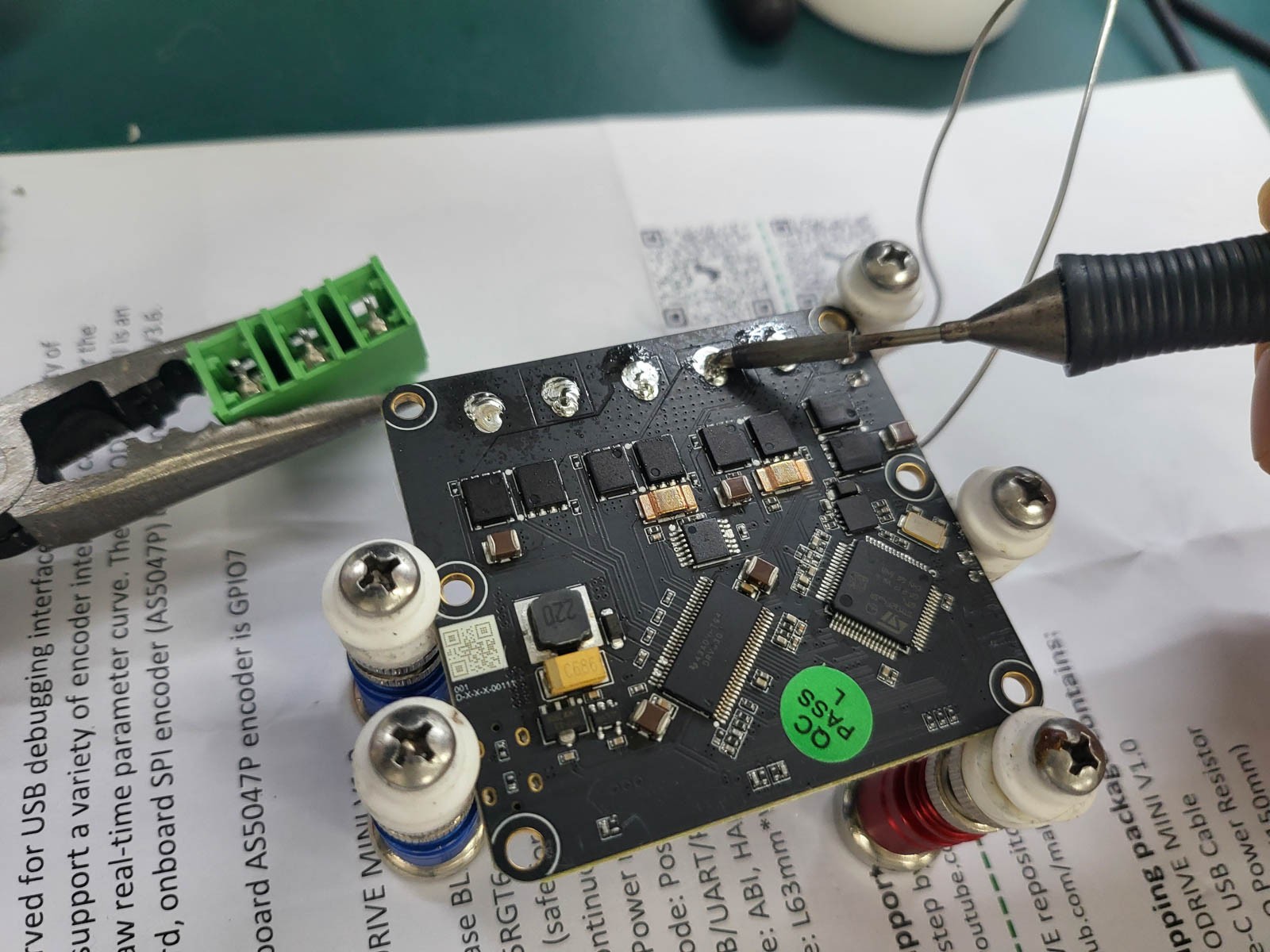
Removing the terminal block at the soldering station.
2. Solder the wires
Solder the wires directly to the pads where the terminal blocks were:
- A, B, C: the three BLDC motor phase wires
- DC +, DC −: the power wires
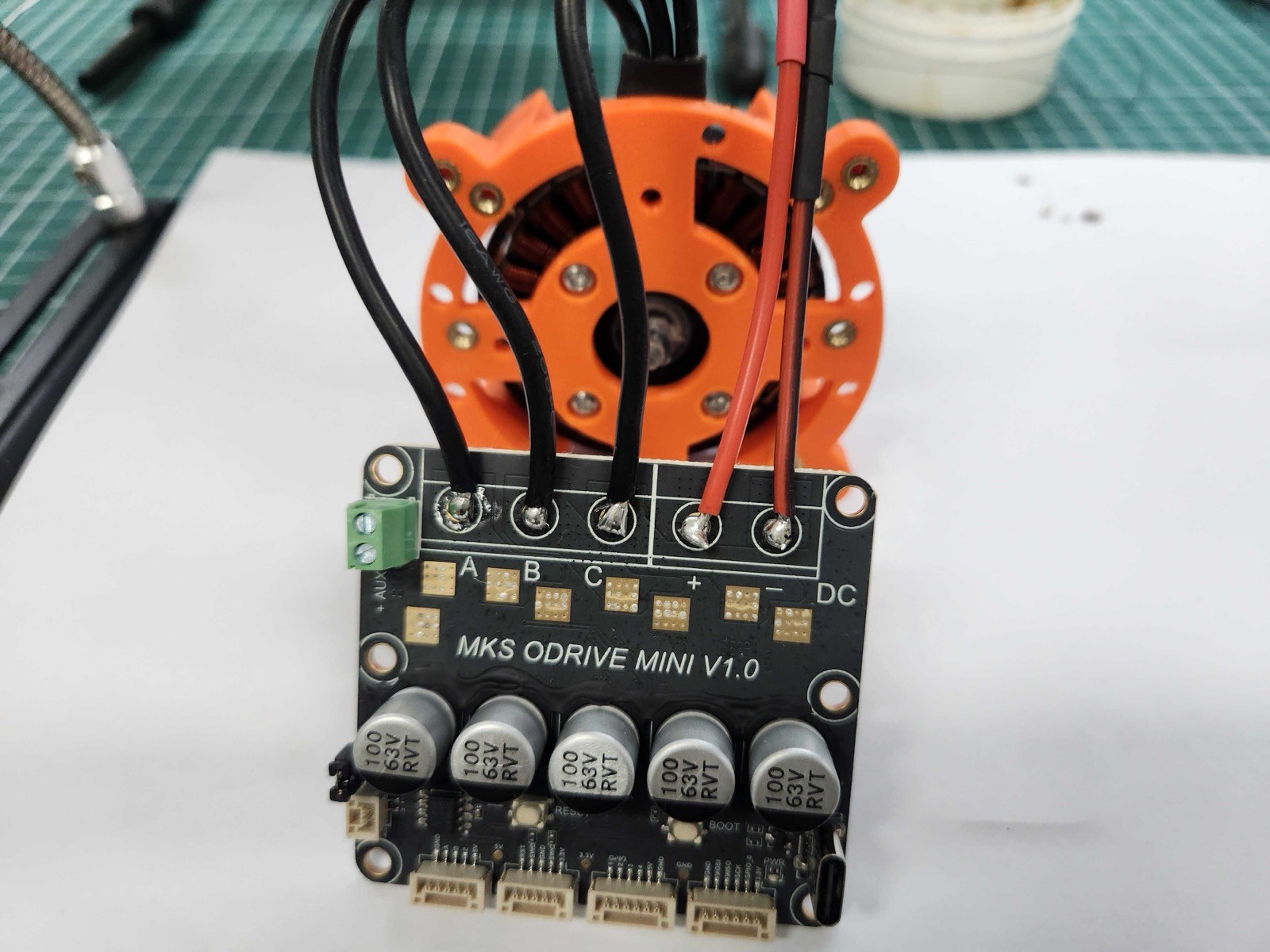
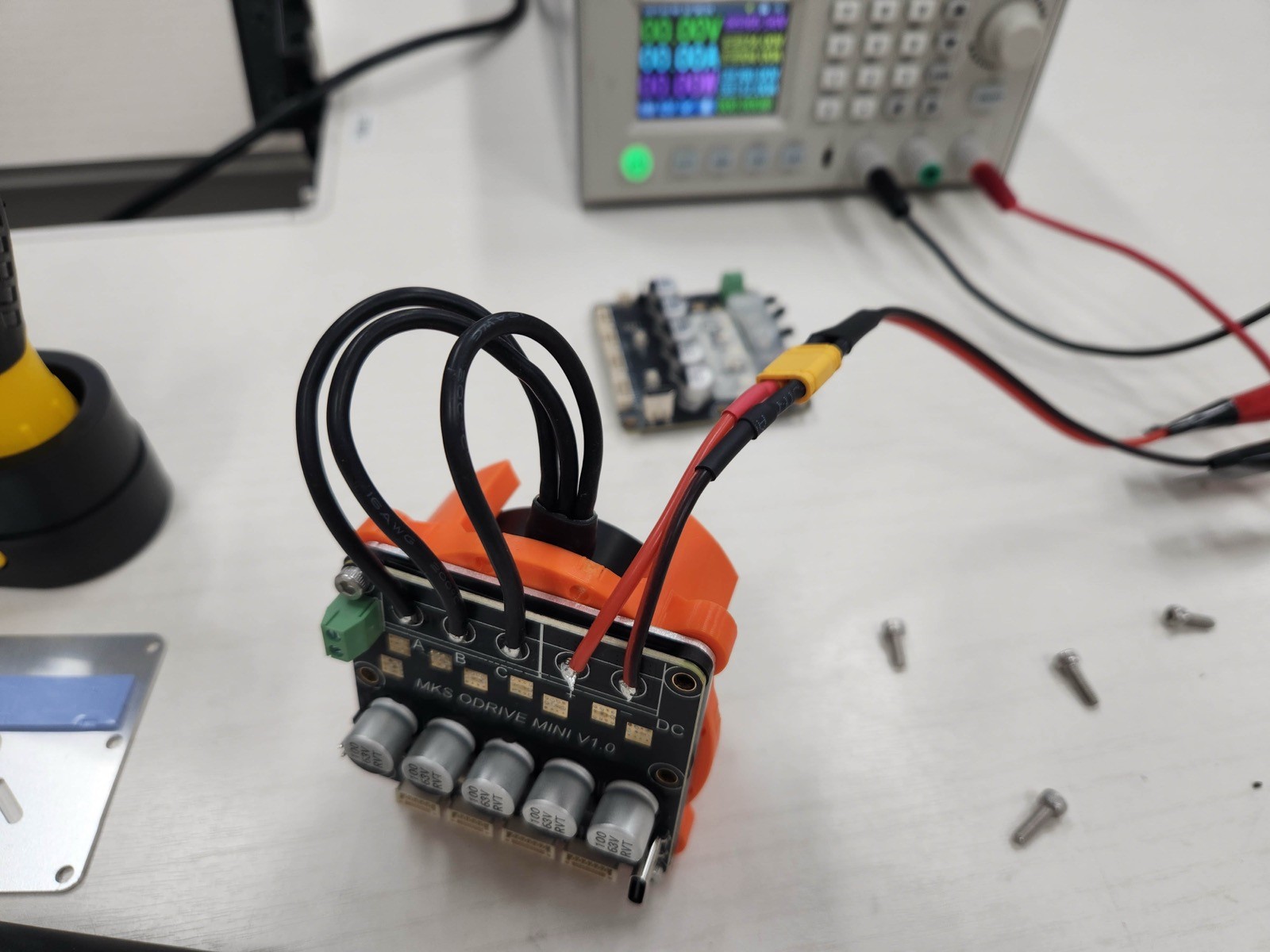
Examples of finished actuators with the wires soldered directly to the board.
3. Secure the wires
To keep the wiring tidy and stop the solder joints from being strained, we recommend fixing the wires to the board with a hot glue gun, as shown below.
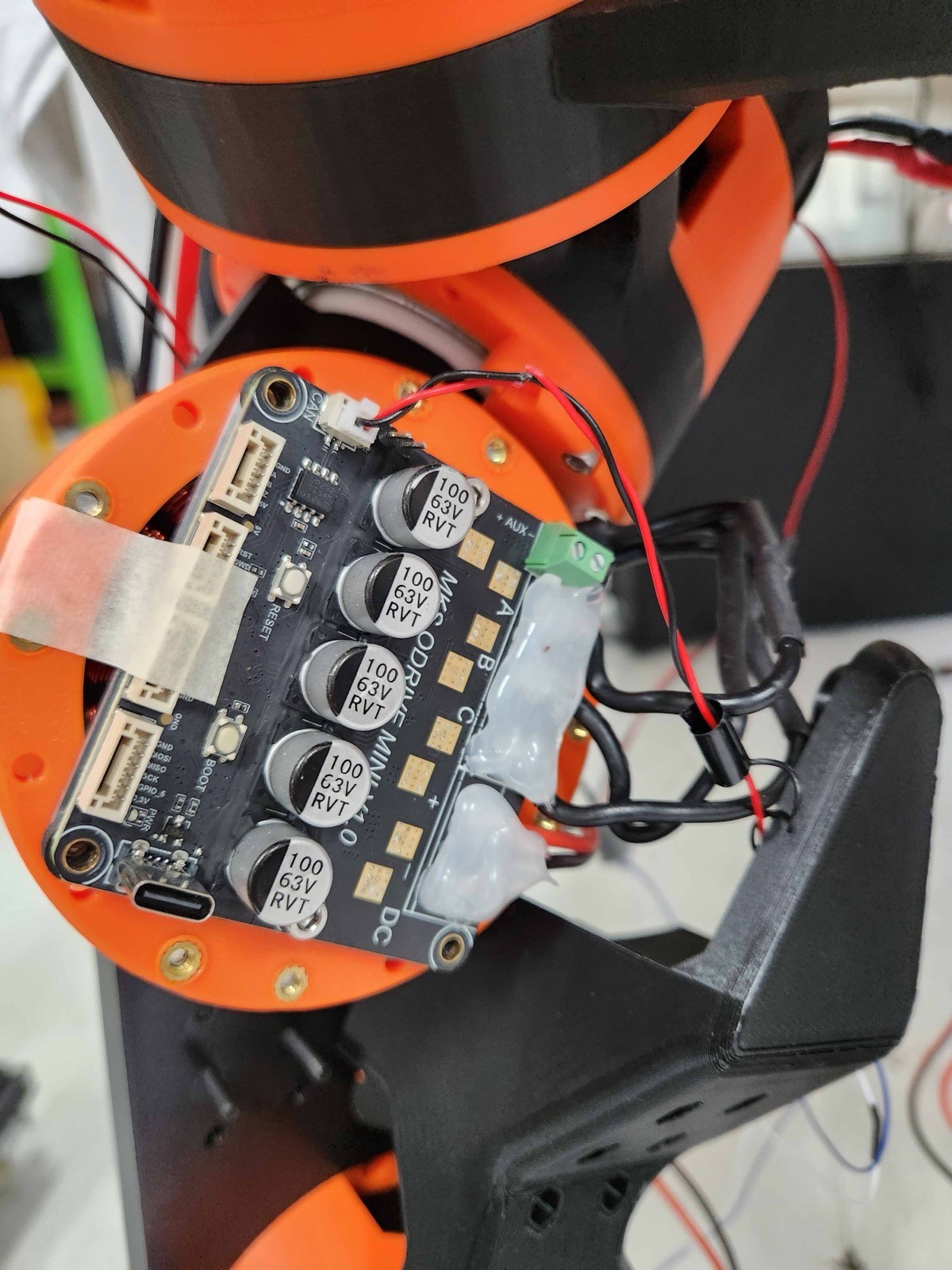
Wires fixed to the board with hot glue, on an actuator mounted in the robot.